
Translating Knowledge Base Articles with Chrome Auto-Translate
Translating Knowledge Base Articles with Chrome Auto-Translate
The IWU IT Support Center does not directly provide foreign language support However, many of our support articles can be translated into foreign languages using Google Chrome's Auto Translate Feature. Google Chrome is a internet browser commonly available on most computers. The goal of this article is to provide set up instructions for students who are interested in using this feature. Google Chrome Auto Translation is not officially managed by Indiana Wesleyan University so we cannot ensure the content of these translations but Google Chrome Auto Translate is a commonly used tool with a reputation for good translations. If your computer does not include Google Chrome it can be downloaded from Google's website. Download Google Chrome
These instructions are for accessing Google Auto-Translate on a personal computer, not a mobile device. To access, translated versions of our support articles please access our knowledge base through a web browser on a personal computer.
Setting up Auto Translate:
To use Auto-Translate, we need to make sure the correct settings are enabled within Google Chrome. These steps will provide instructions for setting up Auto Translation.
- Access Google Chrome's settings by clicking the three dots in the top corner of Google Chrome. Then select "Settings" from the drop down menu.
- On the left hand side of the settings menu, select "Languages"
- Under "Preferred Languages" ensure that your native language of choice is listed.
- If it is not, click "Add Languages" and select it from the list.
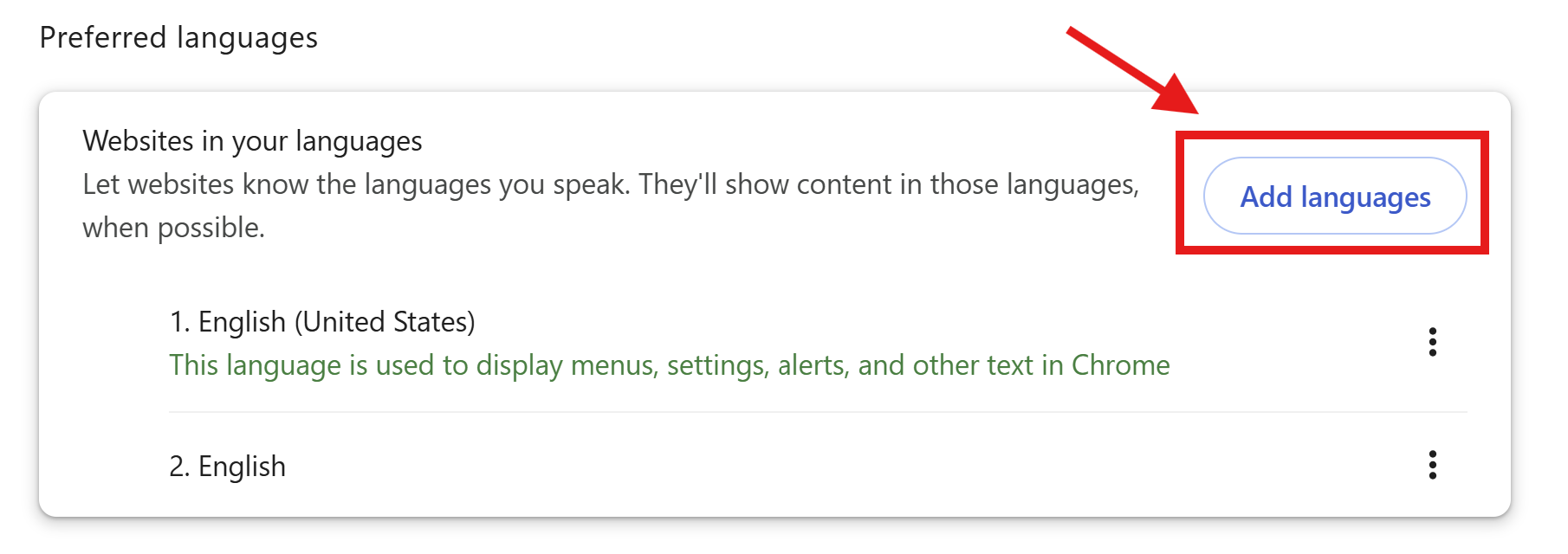
- If it is not, click "Add Languages" and select it from the list.
- Further down the page, under the section labeled "Google Translate" ensure that "Use Google Translate" is enabled by checking the slider.

- In the section labeled "Translate into this Language", be sure the selected language is the language you would like to read the content in.
- If it is not, select the correct language from the drop down menu next to the language that is currently listed.

- If it is not, select the correct language from the drop down menu next to the language that is currently listed.
Using Auto Translate:
If you want Chrome to automatically translate pages that are in another language, you must add the language you want it to be translated into in the section labeled "Automatically translate these languages”.

Now that Auto-Translate is set up, it is easy to translate any webpage into your desired language. When accessing a webpage, Google Chrome will automatically detect the language that it is written in and automatically translate it into the language you selected.
Setting up Auto Translate in Manual Mode:
1. If you don't want auto-translation, but still want to use the translation system manually, you should make sure that you don't add any languages to the section labeled "Automatically translate these languages".
2. If you have already added a language, you can remove it by selecting the trash can next to the language.

Using Auto-Translate Manually:
Now that Auto-Translate is set up in manual mode, it is easy to translate any webpage into your desired language. To translate the webpage, select the Google Translate icon that will be present on the right side of your search bar.

When you click this icon, you will be given the option to choose which of your desired language you would like to view the page in.