
Email on iPhone and iOS Devices
Set Up Your E-mail on an Apple iPhone and iOS Devices
To access your IWU email on your Apple device, you must install the free Microsoft Outlook app from the App Store. IWU IT recommends using the Outlook app instead of the built in mail app or an alternative app from the App Store. Other apps such as Gmail or Apple Mail are unsupported. We are unable to assist with installing them and we will not give notice if they are disabled.
Click on the option below that you'd like to use:
Expand the option below by clicking on the text for the scenario that best describes your current scenario on your iOS device
I've never used the Outlook app on my iOS device
- Open the Apple App store and search for Outlook
- Install the Outlook app from the app store:
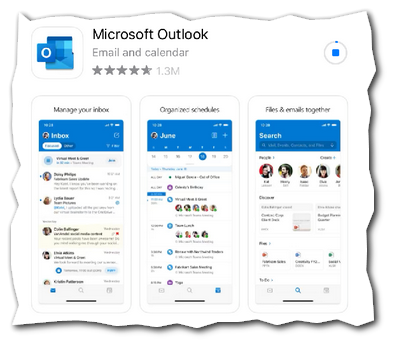
- Once installed, launch the Outlook app
- Enter your IWU email address
Note:
Your IWU Email address is your IWU username followed by @myemail.indwes.edu for students and @indwes.edu for employees.
Example: wesley.wildcat@indwes.edu - Enter your IWU password
- If you are off campus, you'll be prompted to also use your two-factor authentication
- You will have access to your IWU email within the Outlook app.
I already use Outlook on my iOS device with a different email account
- Open the Outlook app.
- Tap on the colored circle in the top left hand corner of the screen.
- Along the left side, click on the grey circle with the smaller blue circle to add a new account.
- Tap on "Add Email Account."
- Enter your IWU email address.
- Enter your IWU password.
- If off campus, you'll then be prompted to use your two-factor authentication
Tip:
You can switch between your IWU email account and other email accounts in the Outlook app by tapping on the colored circle in the top left.
You can switch between your IWU email account and other email accounts in the Outlook app by tapping on the colored circle in the top left.
If you need further assistance, please contact the Support Center at 765-677-2209 or via email at IT.Support@indwes.edu.